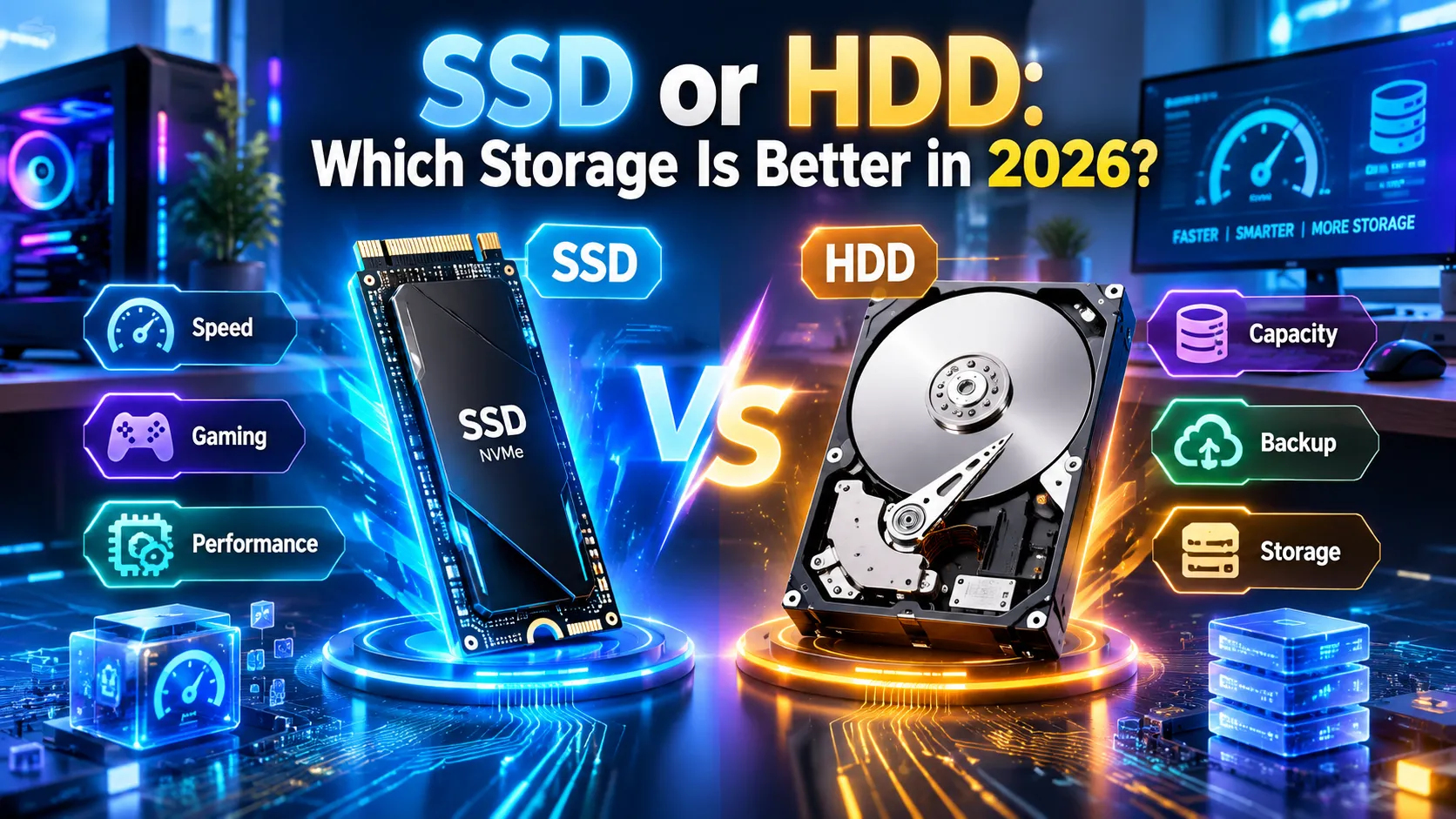
Choosing between an SSD or HDD used to be a simple hardware buying decision. Today, the better question is more specific:
Do you need fast active storage, inexpensive bulk capacity, or a combination of both?
An SSD (solid-state drive) stores data in NAND flash memory and has no moving mechanical parts. An HDD (hard disk drive) stores data magnetically on spinning platters and uses moving read/write heads. This fundamental difference affects speed, latency, noise, power consumption, physical durability, capacity, and cost per terabyte.
In 2026, SSDs are the natural choice for operating systems, applications, modern games, laptops, and frequently accessed files. HDDs remain important for large media libraries, backups, archives, NAS systems, and other workloads where capacity and cost per terabyte matter more than very low latency. Current storage coverage continues to show this division between performance-oriented flash and capacity-oriented hard drives.
For many people, however, the best answer isn’t SSD or HDD.
It is:
SSD for active data + HDD for bulk storage.
SSD vs HDD at a Glance
| Feature | SSD | HDD |
| Full name | Solid-State Drive | Hard Disk Drive |
| Storage technology | NAND flash | Magnetic platters |
| Moving parts | No | Yes |
| Random-access performance | Excellent | Much slower |
| Latency | Very low | Higher |
| Sequential performance | Very high | Lower |
| Noise | Silent | Can produce mechanical noise |
| Shock resistance | Generally better | More vulnerable to shock |
| Power efficiency | Generally better | Generally higher consumption |
| Cost per TB | Usually higher | Usually lower |
| Operating system | Excellent | Not ideal for modern systems |
| Gaming | Excellent | Usable, but slower loading |
| Large media library | Good, but expensive at high capacity | Excellent |
| Backup storage | Good | Excellent for economical bulk storage |
| NAS | Useful for performance tiers/cache | Excellent for capacity |
| Best role | Active data | Bulk/infrequently accessed data |
The simplest distinction is:
SSD = performance and responsiveness
HDD = capacity and storage economics
That doesn’t mean an HDD is obsolete. In 2026, HDDs continue to serve large-scale storage because their economics remain attractive for capacity-heavy workloads.
What Is an SSD?
An SSD, or solid-state drive, is a storage device that uses NAND flash memory to store data electronically.
Unlike a traditional hard drive, an SSD doesn’t need spinning platters or a mechanical actuator arm. Data is accessed through the drive’s controller and flash memory.
Common SSD types include:
- SATA SSDs
- M.2 SATA SSDs
- NVMe SSDs
- PCIe SSDs
- External USB SSDs
- Enterprise SSDs
The absence of moving components gives SSDs a major advantage in latency and random-access performance.
When your computer opens an application, loads system files, searches thousands of small files, or launches a game, the storage device may need to perform many small accesses. SSDs are particularly effective at these workloads.
Modern PCIe NVMe SSDs can also deliver several gigabytes per second of sequential throughput, with current PCIe 5.0 products pushing performance substantially higher than older generations.
Why SSDs feel fast
An SSD can access flash memory without waiting for:
- a platter to rotate,
- a read/write head to move,
- a mechanical seek operation to finish.
That is why an SSD can make a computer feel dramatically more responsive than an HDD, even when the processor and RAM remain unchanged.
What Is an HDD?
An HDD, or hard disk drive, stores information magnetically on rotating platters.
A mechanical actuator moves read/write heads over the platter surfaces to access data.
The technology has been used for decades and continues to evolve. Modern HDDs can provide very large capacities, making them particularly useful when users need many terabytes of storage at a relatively low cost per terabyte. B&H’s March 2026 comparison notes that HDD capacities have reached the tens-of-terabytes range, while current Tom’s Hardware coverage likewise highlights HDDs for high-capacity storage.
HDDs are commonly found in:
- Desktop PCs
- External hard drives
- NAS systems
- Backup systems
- Surveillance storage
- Media servers
- Enterprise storage
- Archive systems
Their biggest limitation is mechanical access.
When an HDD needs data from a different location on the platter, the drive has to physically reposition its head and wait for the platter to rotate into the correct position.
That creates substantially more latency than flash storage.
SSD vs HDD: What Is the Difference?
The fundamental difference is electronic flash storage versus mechanical magnetic storage.
SSD
An SSD uses:
NAND flash → controller → electronic access
HDD
An HDD uses:
Magnetic platter → spinning motor → actuator arm → read/write head
This architectural difference explains most of the practical differences between the two technologies.
| Difference | SSD | HDD |
| Data storage | Flash memory | Magnetic media |
| Mechanical movement | None | Required |
| Access latency | Very low | Higher |
| Random workloads | Excellent | Relatively weak |
| Sequential workloads | Excellent | Good for many bulk-storage tasks |
| Physical shock | Generally more resistant | More vulnerable |
| Noise | Silent | Mechanical noise possible |
| Capacity economics | More expensive at high capacity | Strong |
| Best use | Frequently accessed data | Large-volume storage |
Kingston describes HDDs as mechanical devices with moving parts and notes their greater exposure to mechanical and environmental factors such as shock and vibration.
SSD vs HDD Speed: Which Is Faster?
SSD is faster.
But the important question is why.
Typical HDDs can provide respectable sequential transfer rates, especially modern high-capacity models. However, their mechanical architecture creates much higher access latency.
HP’s current comparison lists typical HDD transfer rates around 30–150 MB/s and SSD performance beginning around 500 MB/s and extending into multi-gigabyte-per-second territory, depending on the SSD and interface.
Modern NVMe SSDs can go much further.
Current PCIe 5.0 consumer SSDs can reach extremely high sequential throughput, although benchmark numbers do not necessarily translate into proportional improvements in every everyday workload.
Sequential vs Random Performance
This distinction is important.
Sequential access
Large blocks of data are read or written consecutively.
Examples:
- Copying a large video file
- Reading a large movie
- Writing a disk image
Random access
The storage device accesses many smaller pieces of data located in different places.
Examples:
- Starting Windows
- Opening applications
- Searching files
- Loading application resources
- Running databases
HDDs can perform adequately in sequential workloads, but their mechanical seek latency makes random workloads much slower.
That’s one reason an SSD can make a computer feel much faster even when you aren’t copying enormous files.
SSD vs HDD for Gaming
For modern gaming, an SSD is generally the more suitable primary storage option.
Games frequently load:
- Textures
- Maps
- Character assets
- Audio
- Shaders
- Configuration files
- World data
An SSD can retrieve these assets much more quickly than a mechanical HDD.
Modern PC platforms and technologies such as Microsoft’s DirectStorage also reinforce the importance of fast storage for certain game-loading and asset-streaming scenarios. Current storage testing continues to position SSDs as the preferred choice for operating systems and game installations.
Use an SSD for:
- Frequently played games
- Modern AAA games
- Game launchers
- Competitive games
- Games with large asset libraries
Use an HDD for:
- Archived games
- Older games
- Game Recordings
- Screenshots
- Mods and other less frequently accessed files
A practical gaming setup
1–2 TB NVMe SSD
- Windows
- Applications
- Frequently played games
4–12+ TB HDD
- Game archive
- Recordings
- Movies
- Photos
- Downloads
This gives you fast game loading without requiring every terabyte of storage to be flash.
SSD vs HDD for a Laptop
For most modern laptops, SSD is the better primary storage technology.
There are several reasons.
1. Performance
An SSD provides faster system startup, application launches and file access.
2. No mechanical movement
Because SSDs don’t have spinning platters or moving heads, they are generally better suited to devices that are frequently moved.
3. Noise
An SSD is silent.
4. Power
SSDs can be more power-efficient than mechanical HDDs in appropriate laptop workloads. HP identifies SSDs as generally more energy-efficient and cooler than HDDs.
5. Form factor
Many modern laptops use compact M.2 NVMe SSDs and don’t include a traditional 2.5-inch drive bay at all.
Best laptop setup
Internal SSD → operating system, applications, and personal files
External HDD → inexpensive backup or large archive
SSD vs HDD for Desktop PCs
Desktop PCs give you more flexibility because many systems can accommodate multiple drives.
That makes a hybrid SSD + HDD configuration particularly useful.
Example
1TB or 2TB NVMe SSD
- Windows
- Applications
- Games
- Active projects
8TB HDD
- Photos
- Videos
- Music
- Documents
- Downloads
- Archives
- Backup data
The SSD handles information that your computer actively works with.
The HDD handles information that you mainly want to keep.
This distinction is becoming increasingly useful as modern SSDs offer very high performance while large HDDs remain attractive for capacity.
SSD vs HDD for Video Editing
Video editing is one of the clearest examples of why both technologies can make sense.
Video projects can contain:
- 4K footage
- 6K footage
- 8K footage
- ProRes files
- RAW footage
- Proxy files
- Render files
- Project databases
- Cache files
An SSD is useful for active projects because editors often need rapid access to many large files.
Use an SSD for:
- Current projects
- Editing cache
- Scratch files
- Active footage
- Editing applications
- Frequently accessed assets
Use an HDD for:
- Completed projects
- Raw footage archives
- Long-term media storage
- Older project files
Best configuration for many creators
Fast NVMe SSD → active editing
Large HDD → archive
Separate backup → protection against data loss
Don’t confuse an archive with a backup. A second copy of a project protects you only if it is actually independent from the original.
SSD vs HDD for Students and Office Work
For students and office users, an SSD can provide a noticeable improvement in everyday responsiveness.
Typical tasks include:
- Web browsing
- Word processing
- Spreadsheets
- PDFs
- Presentations
- Video meetings
- Research
- Programming
- Cloud applications
These workloads frequently involve launching applications and accessing many small files.
An SSD reduces storage latency and generally makes the system feel more responsive.
Upgrading an old laptop?
If an older computer still uses an HDD and supports a compatible SSD, replacing the HDD can be one of the most noticeable upgrades you can make.
However, check compatibility before purchasing. The system may require a particular:
- SATA interface
- M.2 form factor
- M.2 key
- PCIe generation
- Physical size
SSD vs HDD for Photos and Videos
The right choice depends on how frequently you access the files.
Frequently edited photos
SSD
Active video projects
SSD
Huge movie collection
HDD
Ten-year photo archive
HDD can make sense
Frequently accessed professional media library
SSD + HDD
Think about your data in two categories:
Active data = data you work with regularly.
Bulk data = data you primarily want to store.
SSDs are particularly valuable for active data.
HDDs remain attractive for bulk data because capacity is often the dominant requirement.
Explore More: https://wordminto.com/bare-or-bear/
SSD vs HDD for Backup
HDDs remain extremely useful for backups because large capacities can be obtained without paying SSD-level prices for every terabyte.
For example, a desktop backup drive can store:
- Computer images
- Documents
- Photos
- Videos
- Project files
- Game recordings
An SSD can also be an excellent backup drive, especially when portability and fast backup/restore speeds matter.
But the key principle is:
A storage drive is not automatically a backup.
If your only copy of a file is on an external HDD, you don’t have a backup.
If your only copy is on an SSD, you don’t have a backup either.
Follow the 3-2-1 principle
A common backup strategy is:
- 3 copies of important data
- 2 different types of storage
- 1 copy off-site
For valuable files, consider combining local storage with another independent backup location.
SSD vs HDD for NAS
A NAS (Network Attached Storage) can be an excellent environment for HDDs.
Why?
Because NAS systems often prioritize:
- Capacity
- Cost per TB
- Multiple-drive configurations
- Long-term storage
- Backups
- Media libraries
- File sharing
A home NAS might contain several large HDDs while an SSD is used for a cache or performance-sensitive workload.
StorageReview’s current 2026 guidance similarly identifies HDDs as a strong fit for home NAS capacity pools, while SSDs can be useful for performance tiers or caching.
HDDs make sense for:
- Media servers
- Family backups
- Photo archives
- Surveillance storage
- Large file repositories
SSDs make sense for:
- High-performance NAS workloads
- Active editing over a network
- Databases
- Virtual machines
- SSD cache tiers
The correct configuration depends on the workload rather than the assumption that every NAS needs SSDs.
SSD vs HDD: Price and Cost per TB
This is one area where HDDs remain highly competitive.
If you need a small amount of very fast storage, SSD pricing can be reasonable.
But when you need many terabytes, the economics become more important.
Choose SSD when:
- Performance matters
- Capacity requirements are moderate
- Data is frequently accessed
- Low latency matters
Choose HDD when:
- You need many terabytes
- Data is accessed less frequently
- Cost per TB matters
- Sequential performance is sufficient
Tom’s Hardware’s 2026 HDD coverage continues to identify hard drives as the high-capacity, price-oriented option, while its SSD coverage emphasizes SSDs for performance-sensitive systems.
Storage prices change frequently, so a long-term article should focus on the principle of cost per terabyte rather than promising a permanent price difference.
SSD vs HDD: Reliability and Durability
It’s common to hear:
“SSDs never fail.”
That’s false.
Both SSDs and HDDs can fail.
They simply have different failure mechanisms.
SSD durability
An SSD has no spinning platters or mechanical read/write heads.
That generally makes it more resistant to physical shock and vibration.
However, NAND flash has finite write endurance.
Modern SSDs use technologies such as:
- Wear leveling
- Over-provisioning
- Garbage collection
- Error correction
- S.M.A.R.T. monitoring
Kingston notes that SSD endurance is commonly measured using TBW (Terabytes Written) and that modern drives can support hundreds of terabytes or more of writes depending on capacity and model.
HDD durability
An HDD contains mechanical components.
Its reliability can therefore be affected by:
- Mechanical wear
- Shock
- Vibration
- Heat
- Operating environment
- Power events
- Head or motor problems
This does not mean every HDD will fail quickly. Quality, workload, and operating conditions matter.
The important rule
Neither SSD nor HDD should be treated as a substitute for backups.
How Long Does an SSD Last?
There is no universal number of years that applies to every SSD.
Lifespan depends on:
- NAND type
- Drive capacity
- Write workload
- Temperature
- Controller
- Firmware
- Power conditions
- Usage pattern
- Drive quality
One useful specification is TBW.
What does TBW mean?
TBW means Terabytes Written.
It represents the amount of data a manufacturer rates the SSD to handle over its specified endurance period.
For example, a drive with a 600 TBW rating has a manufacturer-specified endurance of 600 terabytes written under the relevant warranty/specification conditions.
TBW isn’t a countdown clock that suddenly makes the drive unusable when the number is reached.
It is an endurance specification.
Kingston explains that SSD endurance can range from hundreds of terabytes to petabyte-scale write ratings depending on the drive and capacity.
How Long Does an HDD Last?
HDD lifespan also varies.
Factors include:
- Operating hours
- Workload
- Temperature
- Vibration
- Drive quality
- Power conditions
- Mechanical wear
- Environment
Some HDDs operate reliably for many years, while others can fail much earlier.
This is why important data should never depend on the assumption that a particular drive will last a predetermined number of years.
SATA SSD vs NVMe SSD
Not all SSDs provide the same performance.
Two important categories are:
SATA SSD
SATA SSDs use the SATA interface.
They are dramatically faster and more responsive than HDDs while remaining compatible with many older computers.
They are often a sensible upgrade for an older laptop or desktop that supports SATA storage.
NVMe SSD
NVMe SSDs use PCIe and the NVMe protocol.
They can provide:
- Much higher throughput
- Very low latency
- Excellent random performance
- High performance for demanding workloads
Current consumer platforms support increasingly fast PCIe SSD generations, including PCIe 5.0 products.
SATA SSD vs NVMe SSD: Which should you choose?
If you’re upgrading from an HDD:
HDD → SATA SSD can already be a dramatic improvement.
If your computer supports NVMe:
NVMe SSD is usually the more appropriate choice for a new high-performance system.
But don’t assume the fastest benchmark automatically produces the biggest real-world improvement.
Does PCIe Gen 5 SSD Matter?
PCIe Gen 5 SSDs can deliver extremely high sequential transfer rates.
That makes them attractive for demanding workloads.
However, your actual benefit depends on what you do with the computer.
A person who primarily:
- browses the web,
- uses Office,
- watches videos,
- manages photos,
- plays ordinary games,
may not notice a proportional difference between a very fast Gen 5 SSD and a good Gen 4 NVMe SSD.
On the other hand, professional workloads involving large datasets and sustained storage activity can benefit more from high-end storage performance.
Don’t buy the biggest number.
Look at:
Workload → capacity → endurance → thermals → compatibility → price → performance
That is a better buying process than choosing solely by advertised MB/s.
SSD vs HDD: Power Consumption
HDDs need a motor to spin their platters and mechanical components to position the read/write heads.
SSDs don’t have these mechanical requirements.
As a result, SSDs can offer lower storage power consumption in many systems, which is particularly relevant for laptops and other portable devices. HP identifies SSDs as generally more energy-efficient and cooler than HDDs.
However, actual system-level power consumption depends on:
- Drive model
- Workload
- Interface
- Power-management settings
- Computer platform
- Idle behavior
So don’t assume every SSD consumes less power in every possible workload.
SSD vs HDD: Noise
An SSD has no spinning disk.
That means:
SSD = silent storage
An HDD can produce:
- Spinning sounds
- Head movement sounds
- Vibrations
- Clicking or seeking noises
Noise may not matter inside a conventional desktop, but it can matter in:
- Quiet workstations
- Home servers
- Recording studios
- Bedrooms
- Small-form-factor systems
If silence is important, SSDs have an obvious advantage.
Can You Use an SSD and HDD Together?
Yes.
In fact, this is often one of the most practical storage strategies.
Instead of asking:
“Should I buy an SSD or HDD?”
ask:
“Which data belongs on the SSD, and which data belongs on the HDD?”
Put these on the SSD
- Operating system
- Applications
- Frequently played games
- Current projects
- Frequently accessed files
- Editing cache
- Development environments
- Virtual machines when performance matters
Put these on the HDD
- Movies
- Music
- Large photo archives
- Old projects
- Downloads
- Backups
- Rarely accessed files
- Media libraries
This creates a tiered storage strategy.
Your fastest storage handles active workloads.
Your high-capacity storage handles everything else.
Current storage guidance increasingly frames SSDs and HDDs this way rather than treating them as direct substitutes for every workload.
SSD or HDD: Which One Should You Buy?
Use this quick decision guide.
If you choose an SSD:
- Want a responsive computer
- Need fast boot times
- Run modern applications
- Play modern games
- Use a laptop
- Edit photos or videos
- Program or compile software
- Frequently open large applications
- Want silent storage
- Are replacing an old HDD
Choose an HDD if you:
- Need several terabytes
- Want low cost per TB
- Store large media collections
- Need archive storage
- Store data you rarely access
- Build a capacity-focused NAS
- Need inexpensive secondary storage
Choose both if you:
- Have a desktop PC
- Need speed and large capacity
- Edit video
- Maintain a large media library
- Need local backups
- Build a home server
- Want separate active and archive storage
SSD vs HDD for Different Users
| User / Workload | Recommended Storage Strategy |
| Student | SSD |
| Office user | SSD |
| Laptop user | SSD |
| Gamer | SSD, with HDD for bulk storage if needed |
| Programmer | SSD |
| Video editor | SSD + HDD |
| Photographer | SSD + HDD |
| Content creator | SSD + HDD |
| Large media collector | SSD + HDD |
| Home backup user | HDD + independent backup |
| NAS user | HDD for capacity; SSD where workload benefits |
| Old HDD-based PC | Compatible SSD upgrade |
| Professional workstation | SSD or SSD + HDD depending on workload |
Common SSD vs HDD Buying Mistakes
1. Buying an HDD as the primary drive for a modern PC
A mechanical HDD can work as a boot drive, but an SSD generally provides a much more responsive experience.
2. Buying the fastest SSD without needing it
Don’t pay for extreme benchmark performance if your workload won’t benefit from it.
3. Looking only at capacity
Two 2TB drives can have very different:
- Interfaces
- Endurance ratings
- Performance
- Controllers
- NAND types
- Warranties
- Thermal requirements
4. Treating a second internal drive as a complete backup
If your computer is stolen, damaged, infected, or destroyed, a second drive inside the same machine may disappear with it.
5. Assuming SSDs cannot fail
They can.
Flash storage has finite endurance, and SSD electronics and controllers can fail.
6. Ignoring compatibility
Before buying an M.2 NVMe SSD, check:
- M.2 support
- PCIe support
- Form factor
- Available lanes
- Motherboard compatibility
- Laptop compatibility
7. Using one drive for everything
A large hybrid setup may be more practical than buying an enormous SSD simply because you want more capacity.
A Simple SSD vs HDD Decision Tree
Ask yourself these questions.
Question 1: Is this your operating-system drive?
Yes → SSD
Question 2: Do you frequently access the data?
Yes → SSD is usually preferable
Question 3: Do you need many terabytes?
Yes → Consider HDD
Question 4: Is the data mostly an archive?
Yes → HDD can be economical
Question 5: Are you editing large files?
Yes → SSD for active projects
Question 6: Do you need both speed and capacity?
Yes → SSD + HDD
Question 7: Is the data important?
Yes → Maintain an independent backup regardless of drive type
SSD vs HDD: Quick Revision Box
SSD: Fast, quiet, low-latency, shock-resistant, ideal for active data.
HDD: High capacity, economical per TB, ideal for bulk storage and archives.
NVMe SSD: High-performance SSD using PCIe and NVMe.
SATA SSD: SSD using the SATA interface; still a major upgrade over HDD.
TBW: Terabytes Written, an SSD endurance specification.
NAS: Network Attached Storage, often using HDDs for economical capacity.
Hybrid setup: SSD for active workloads + HDD for bulk storage.
People Also Ask
For performance, responsiveness, low latency, portability, and many everyday computing workloads, an SSD has major advantages. HDDs remain useful when inexpensive high-capacity storage is the priority.
For large-capacity storage where cost per terabyte matters more than low latency, an HDD can be the more economical choice.
SSD. SATA SSDs are substantially faster than typical HDDs, while NVMe SSDs can provide several GB/s of sequential throughput depending on the drive and PCIe generation.
Generally, yes, for game installation and loading performance. An HDD can still be useful for archived games and other large files.
For a modern PC, an SSD is the appropriate choice for the operating system because of its much lower latency and faster application/file access.
Yes. HDDs are useful for economical, high-capacity backup storage. However, the backup itself should be independent of the original data.
Final Verdict: SSD or HDD?
There isn’t one storage technology that is ideal for every workload.
The better way to think about SSD or HDD is to match the technology to the data.
Choose an SSD for:
Speed + responsiveness + active workloads
Use it for your operating system, applications, games, current projects, and frequently accessed files.
Choose an HDD for:
Capacity + economical bulk storage
Use it for large media collections, archives, backups, and data that doesn’t need extremely low latency.
Choose both for:
Performance + capacity
For many desktops, creators, and home storage systems, this is the most flexible approach.
The modern storage question is therefore not simply:
“SSD or HDD—which one is better?”
It is:
“What data do I actively use, how much storage do I need, how often do I access it, and what performance is worth paying for?”
Once you answer those questions, the right storage configuration becomes much clearer.











1 thought on “SSD or HDD: Which Storage Is Better in 2026?”